 Calibre Reader
Books from calibre's content server on iPhone, iPad and Mac
calibre has a server of its own: the content server, built into the calibre you already use. Start it, and Calibre Reader reads every library it shares, edits their books, and keeps your highlights in calibre's own annotations. On Android too.
Start the content server in calibre
- In calibre on your computer, click Connect/share in the toolbar and choose Start Content server.
- Note the computer's address on your network and the server's port, such as
http://192.168.1.20:8080: 8080 is the port calibre uses unless you change it. - To sign in with a name, and to let the app change books, open calibre's Preferences › Sharing over the net, turn on Require username and password to access the Content server, and add a user under User accounts, allowed to make changes if you want to edit.
- Keep calibre open while you read, or run the server alone with
calibre-serveron a computer or NAS that stays on.
calibre's own menus are named here as calibre names them in English.
Add it to Calibre Reader
- Open ⋯ › Settings. Under Server, type the address with its port.
- Leave Connection Security on Automatic for a server at home.
- Under Credentials, type the calibre user's name and password, then tap Save.
The app finds out by itself that it is calibre's server. Each library the server shares becomes a library in the app, under Libraries in the sidebar, and All Books shows them together. Over plain http calibre asks for a Digest sign-in, which never sends the password itself.
What you can do with it
| What | How |
|---|---|
| Read and download | Tap a cover, then Read. The book is downloaded, opens at your place, and stays on the device for reading offline. |
| Edit details | Title, authors, series, tags, rating, publisher, date, languages, description, identifiers and the cover, with the pencil on a book's page. The changes are written into the calibre library. |
| Formats and books | Add or remove a book's formats, send new books with ⋯ › Upload Books, and delete books once Allow Deleting Books is on. |
| Several libraries | Every library the server shares, each a library of its own in the app. |
Changes need a server that takes them: a user allowed to make changes, or, on a network you trust, calibre's --enable-local-write. Without either, everything still reads.
Highlights and notes in calibre
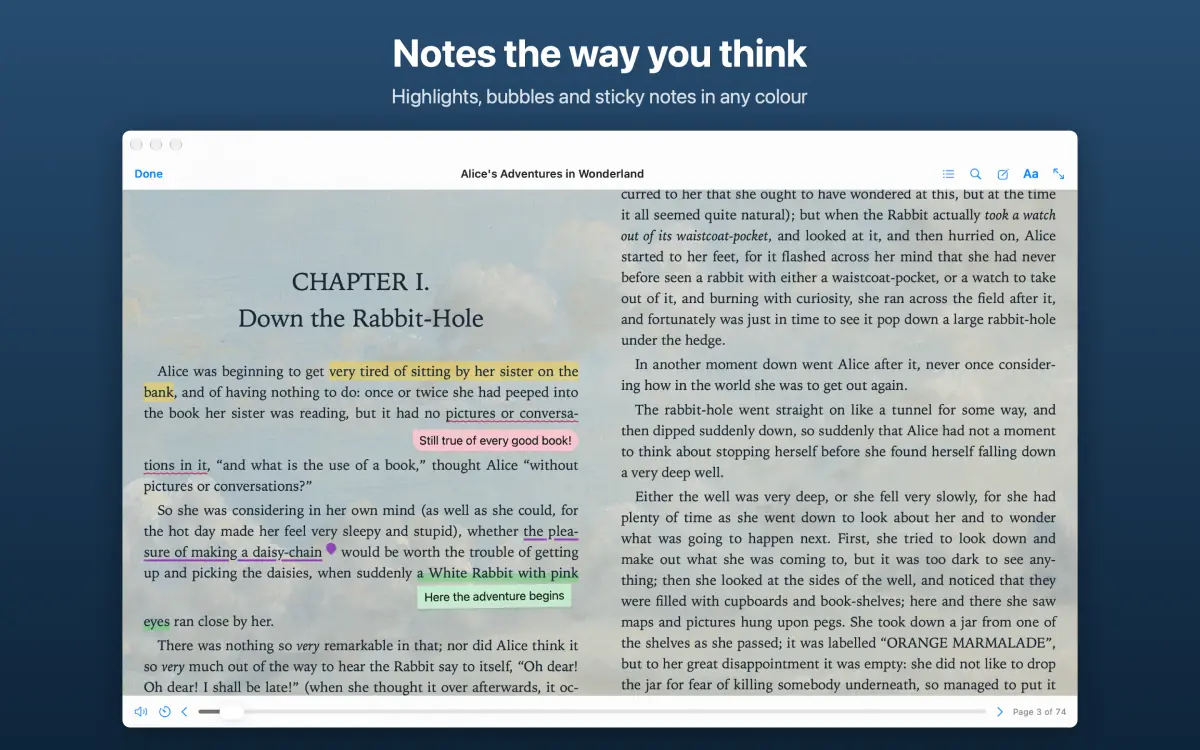
Calibre Reader keeps your highlights and notes in calibre's own annotations, the ones calibre's E-book viewer shows. In a book's notes, Notes Actions offers Upload All, Fetch from Server and Sync with Server; ⋯ › Sync Notes & Highlights does it for every book at once. Notes are matched one by one, by their identity and the time they were changed, so the newer change wins on either side and an older copy never undoes it.
In EPUB books the highlights sit on the same words in calibre's viewer. For other formats they are kept with the book for Calibre Reader to read back. Your place in each book is kept by the app; with a Calibre Reader account, supporters have it follow them to their other devices with Places and Notes in Step.
calibre-web or the content server?
Both serve the same calibre library. The content server comes with calibre and needs nothing else, but calibre or calibre-server must be running. calibre-web is a separate server, often run on a NAS, with accounts, shelves and read marks of its own. Calibre Reader works with either, or with both at once: see calibre-web on iPhone, iPad, Mac and Android. And a library kept in a cloud drive or on a share at home needs no server at all: see Libraries on clouds and NAS drives.
Away from home
The content server listens on your own network. To reach it from elsewhere, put it behind a reverse proxy with https, or join your home network through a VPN. calibre can also serve https itself with a certificate of yours, given with --ssl-certfile and --ssl-keyfile. With Connection Security on TLS, Any Certificate, the app accepts a self-signed one: the connection is encrypted, though who answers is not verified.
If it does not connect
- Open the address in a browser on the same device: calibre's own web page should appear.
- Check that the computer's firewall lets other devices reach calibre's port.
- On an iPhone or iPad, the app must be allowed to use the local network. Check Connection in Settings says what the server answered.
In the guide: Connecting to Your Libraries and Notes and Highlights.
Read your library with Calibre Reader
One app for iPhone, iPad, iPhone Duo and the Mac on the App Store, and for Android, Windows and Linux to download here.